
Trips guide
How to map places you’ve visited from your photos
Use photo locations to start a travel map, check the gaps, and keep the details that turn a list of cities into memories.

The short answer
To make a map of places you’ve visited, start with the locations saved in your travel photos. Group them into cities, check which ones you actually visited, then add trips that have no photos. A photo map is a useful starting point; your memory supplies the context that coordinates cannot.
Start with the locations already in your photos
Some photos store a capture date and location alongside the picture. A map can use that location to place the photo without recognising the building or landscape in it. A picture of a café table can be just as useful as a famous skyline.
On iPhone, open a travel photo in Photos and swipe up or tap the Info button to check for a saved location. Apple also offers a map view for photos with location information. If all you need is to browse pictures geographically, that may already do the job. See Apple’s guide to viewing photos by location.
For a separate visited-places collection, use those locations to build a shortlist of cities. Review that shortlist before treating it as your travel history. Dates help distinguish a weekend away from a longer trip through several cities.
Decide what counts as a visit
Your map should follow a rule that makes sense to you. You might count a city when you have spent time exploring it, and leave out an airport connection. Someone else might keep every stop. Neither rule needs to become a competition.
- Check nearby cities. A photo near a boundary may need a second look. Keep the place that describes your visit accurately.
- Separate a place from a trip. Kyoto is a city; your spring visit to Kyoto is an experience. Returning later does not mean the two trips were the same.
- Review the dates. A cluster of photos is a clue, not proof of your exact arrival or departure time.
Missing photos do not mean a missing trip
A scan cannot recover a location that was never saved. Older cameras, photos with location removed, and limited photo access can leave gaps. A trip without pictures still belongs in your history.
Add places you remember manually. Check an old calendar, a ticket, or a travel companion’s recollection if you need a prompt. Keep the month or year when that is all you know, rather than inventing a precise date. You can organise a useful travel record without granting access to your entire photo library.
Keep one detail that takes you back
A pin answers “Where?” A short memory answers “Why do I want to remember this?” In a notebook or your own travel document, pair each trip with one small scene rather than trying to reconstruct every hour.
An illustrative travel entry
Kyoto · April 2022
- The place
- A few days in Kyoto, with an afternoon along the Philosopher’s Path.
- The detail
- A bicycle leaning against the canal wall, and stopping for a warm drink when the rain started.
- The photo to keep
- The quiet canal, rather than every picture from the afternoon.
Useful headings for your own record are city, country, trip dates, who was there, one place to remember, and a short personal note. These are prompts for a travel journal; you do not have to fill every one.
Find your cities in Crestora
In Crestora’s iPhone app, choose Find cities through photos and allow the photo access you are comfortable with. Crestora reads available location and time information to suggest cities. Review the results and keep the cities you want to add; you can also choose cities yourself.
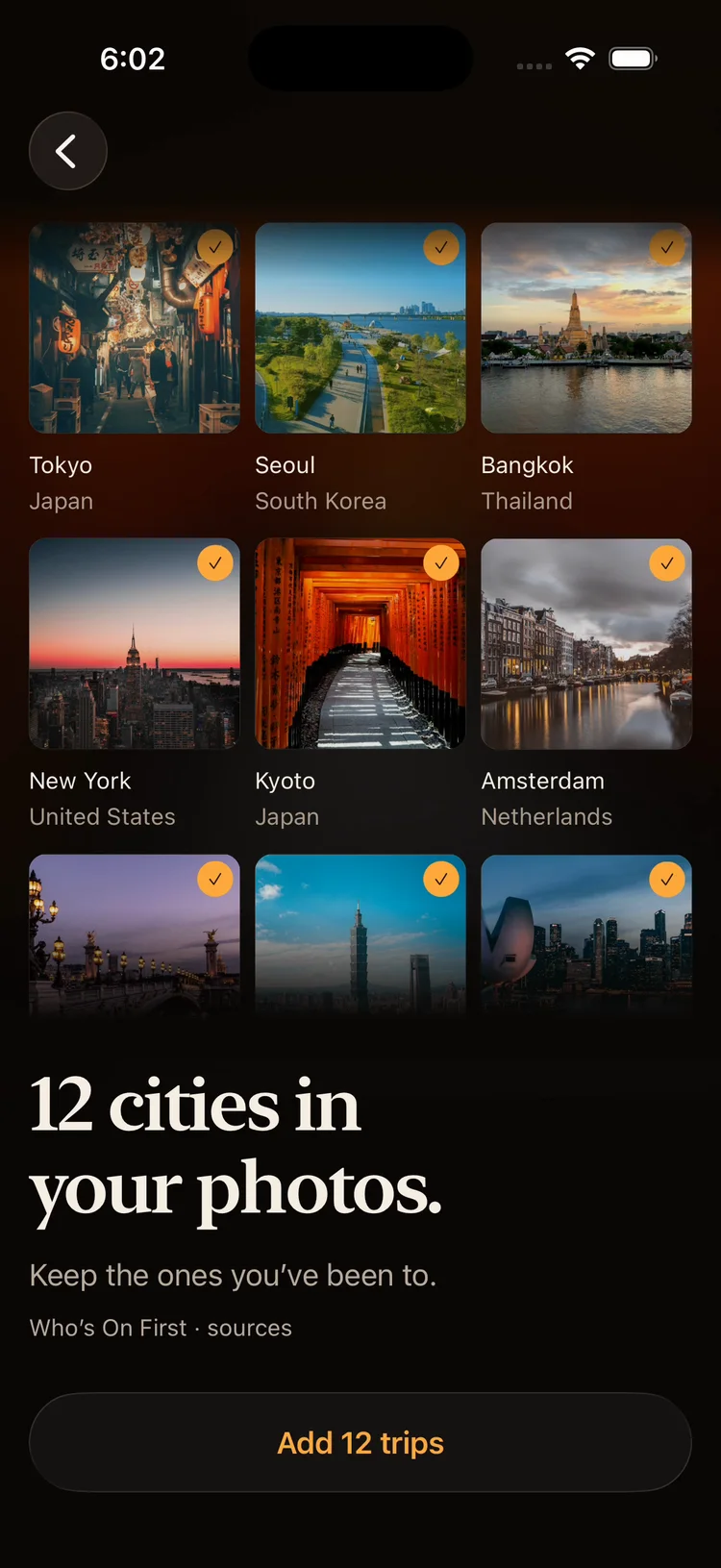
The city scan does not upload the image files. Other photo features have their own data handling, described in the privacy policy. Photos without saved locations cannot supply a city, and a suggested city is still something to check.
From there, explore your cities on a globe and compare favourite trips. Start with the places that mean something to you, then return to add the details you want to keep.
Questions
Questions, answered.
How can I see where my photos were taken on iPhone?
Open a photo in Photos and swipe up or tap the Info button to see any saved location. Apple’s Photos app also offers a map view for photos that have location information.
Why are some of my trips missing from a photo map?
A map can only use locations that were saved with the photo. Older cameras, removed location data and limited photo access can all leave gaps, so add those trips manually.
Does a photo location prove I visited a city?
Not on its own. A cluster of photos is a strong clue, but check places near city boundaries and stopovers, and decide what counts as a visit for you.
Do I have to give access to my whole photo library?
No. You can build a useful travel record from the photos you choose to share and add other places by hand.
Keep reading
More guides.
- Films · Guide
How to keep a film log
Remember the films you watch and the evenings around them. Choose a movie logger, learn what to record, and start with a free spreadsheet template.Read the guide - Films · Guide
How to rank your favourite movies
Five stars each? Work through a personal top ten with comparisons, a four-film example, and room for ties and changing taste.Read the guide - Films · Guide
How to make a movie tier list
Define tiers that mean something, choose how many you need, and place borderline films. Includes one viewer’s ten-film example.Read the guide